If you do not have a Phone Bookings user or Sales user you do not have the correct permissions settings to block off time, please email team@zipleads.com.au for assistance.
There are 2 ways to block off time if your ZipLeads calendar. Both options are listed in the video above and also below.
Option 1 - Block off time Via the Calendar View:
1.Navigate to Calendars from the left hand side menu
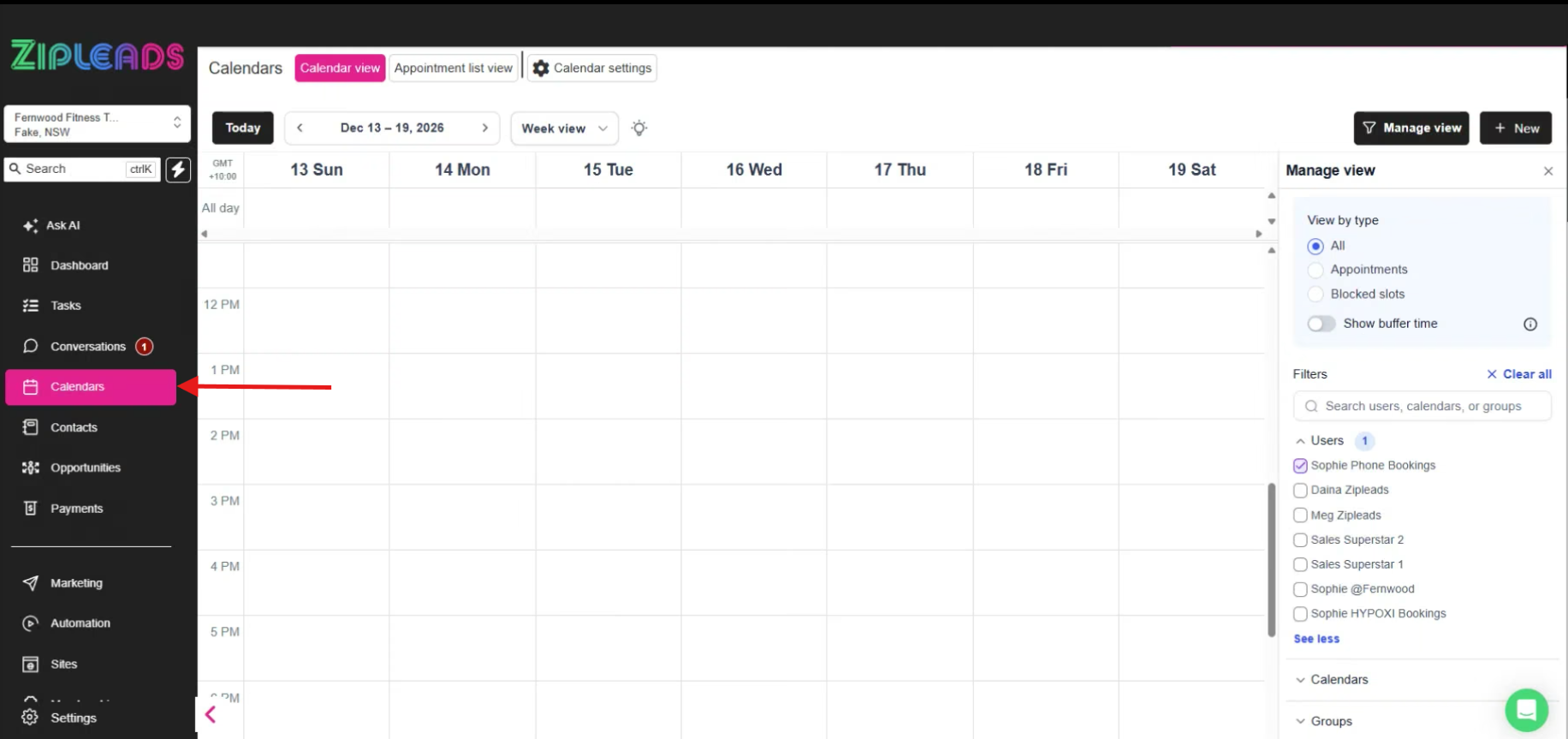 2.. Find the day you need to adjust. You can select all day but clicking the box in the all day row:
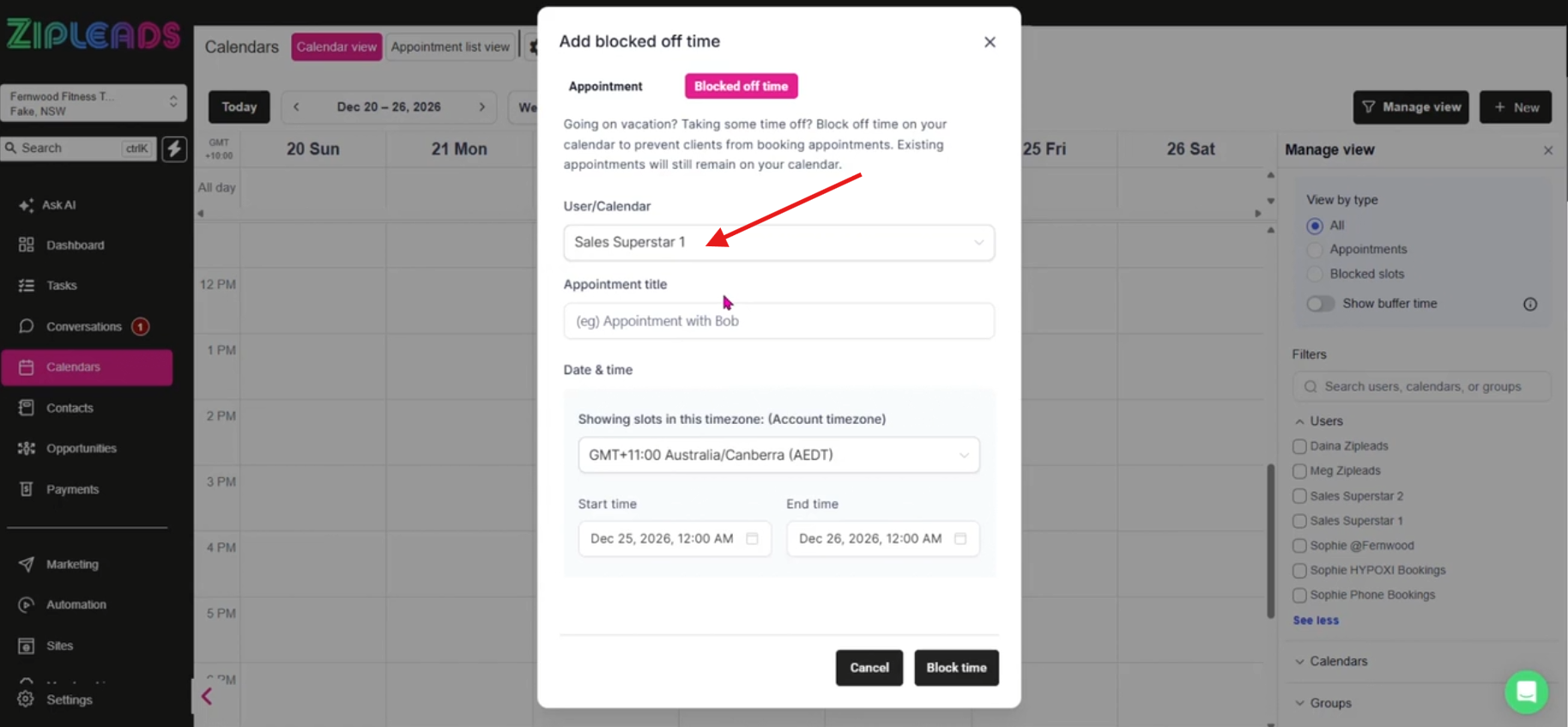
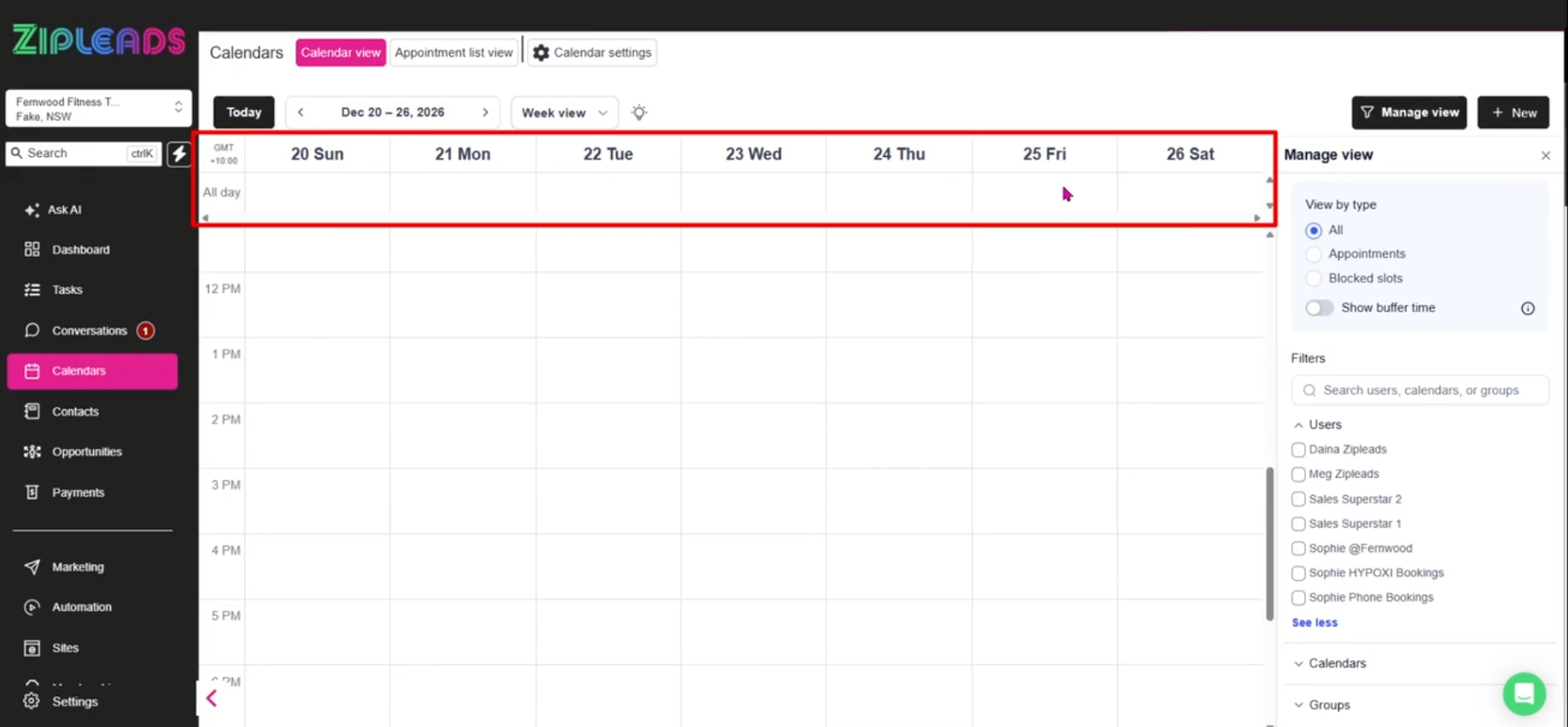 Select blocked off time:
 Then select your user you need to block off time for (please note if there are multiple you will need to do this for all users who have bookings made on them e.g Sophie Phone Appointments, HYPOXI Phone Appointments, Sales Superstars)
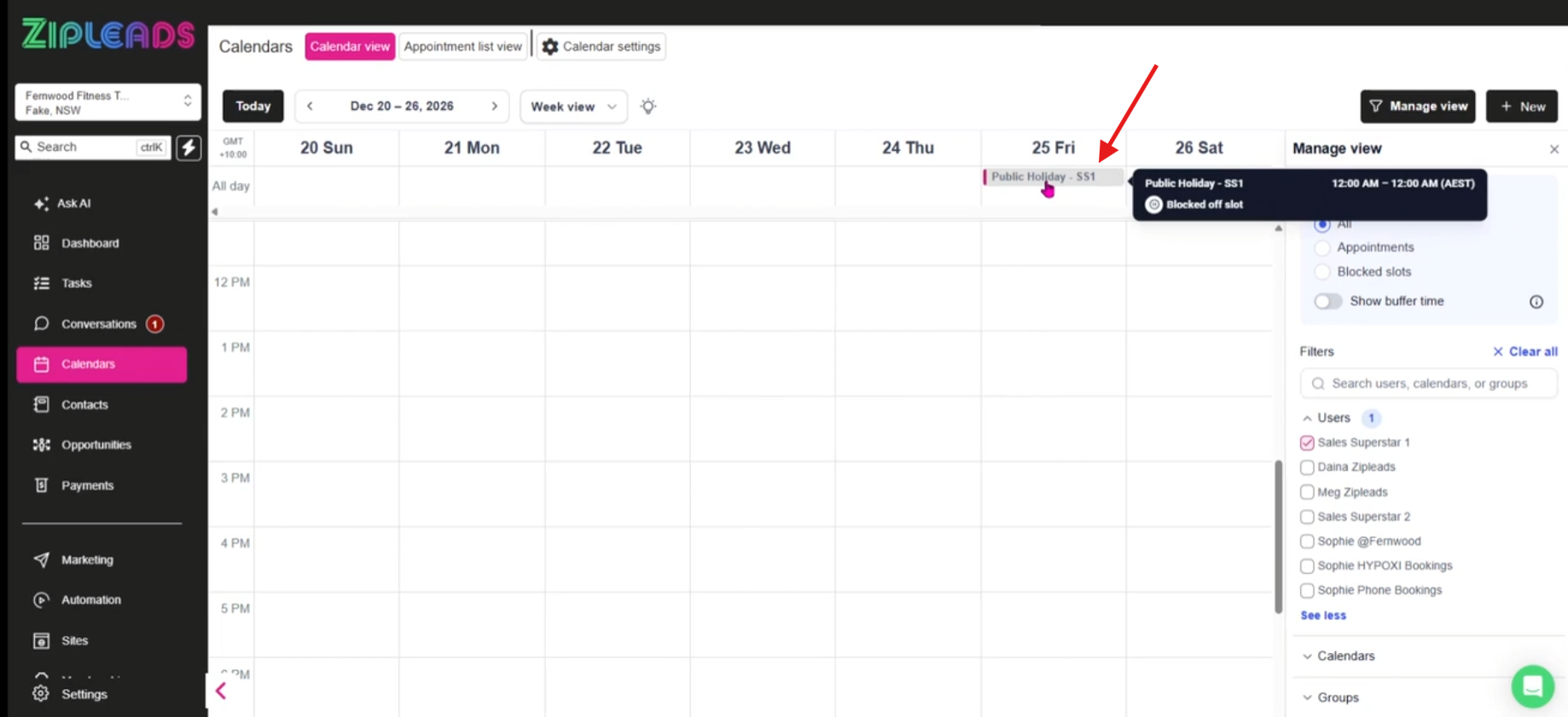
 Once Saved it will look like this and Leads will not be able to book in phone calls for this day.
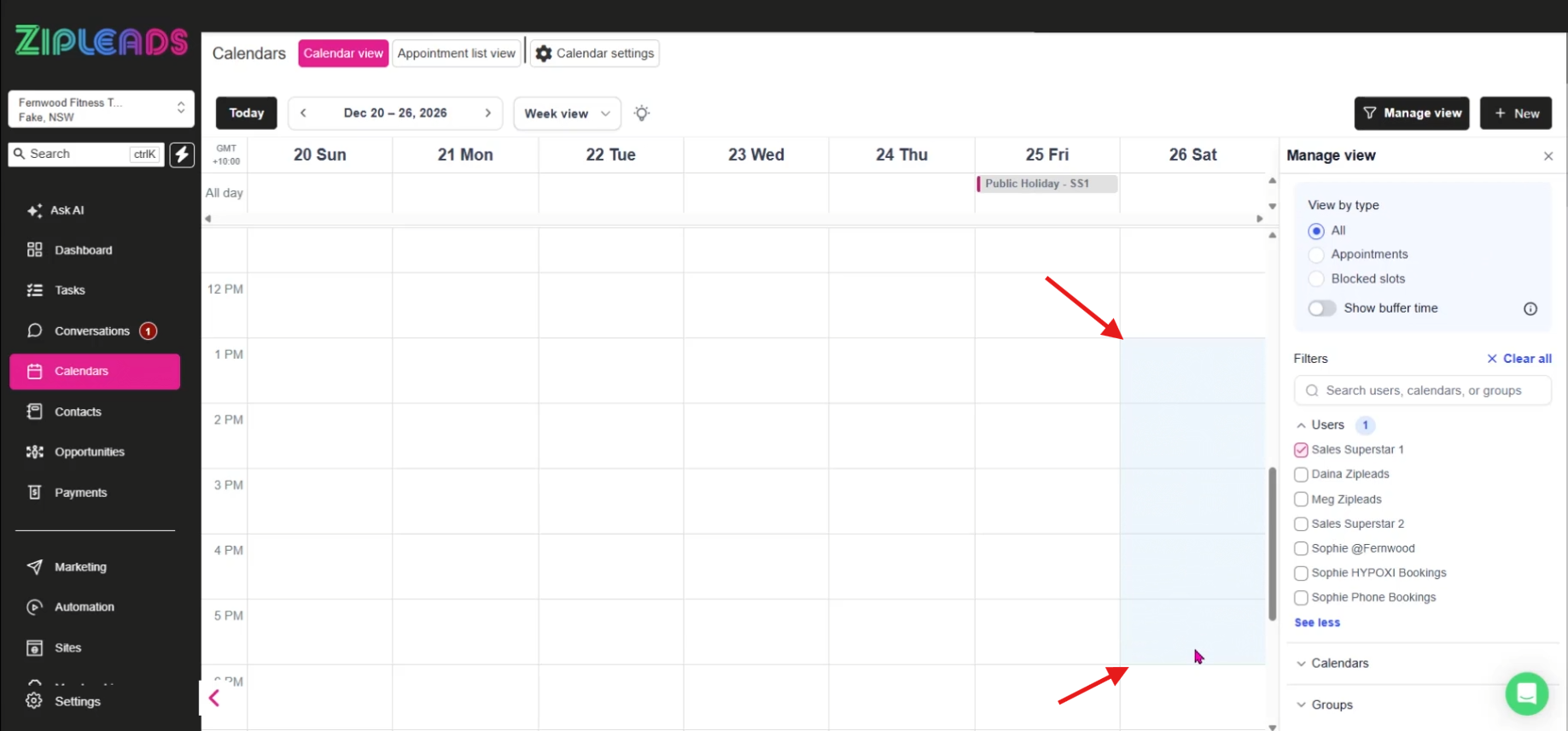
 Alternatively you can just select a few hours by finding your time, clicking and dragging from the start time to the end time. Then follow the same steps above
 Once Saved it will look like this and Leads will not be able to book in appointments for this time period.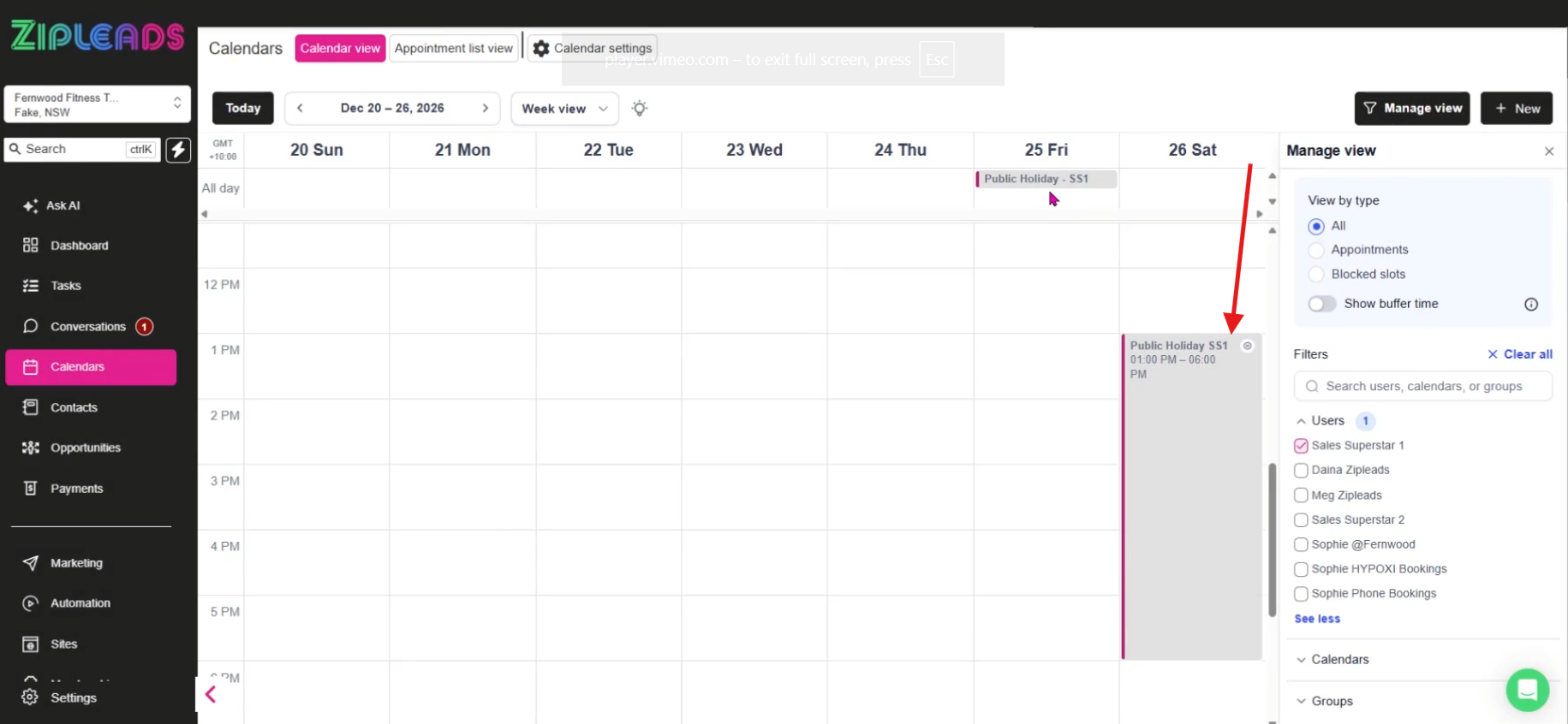
Option 2 - Block off time Via the Calendar Settings:
1. Navigate To Calendars from the left hand menu > Calendar settings
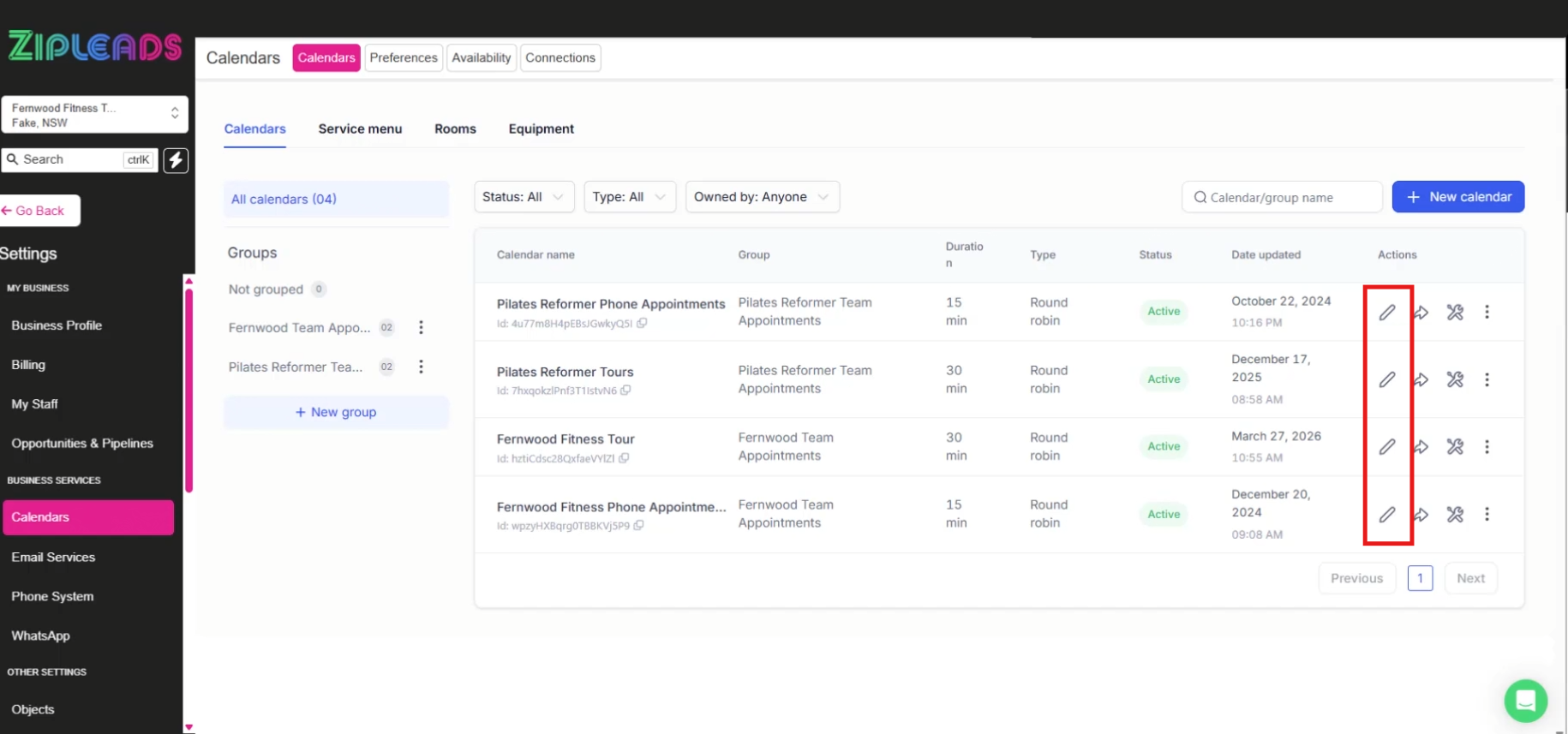
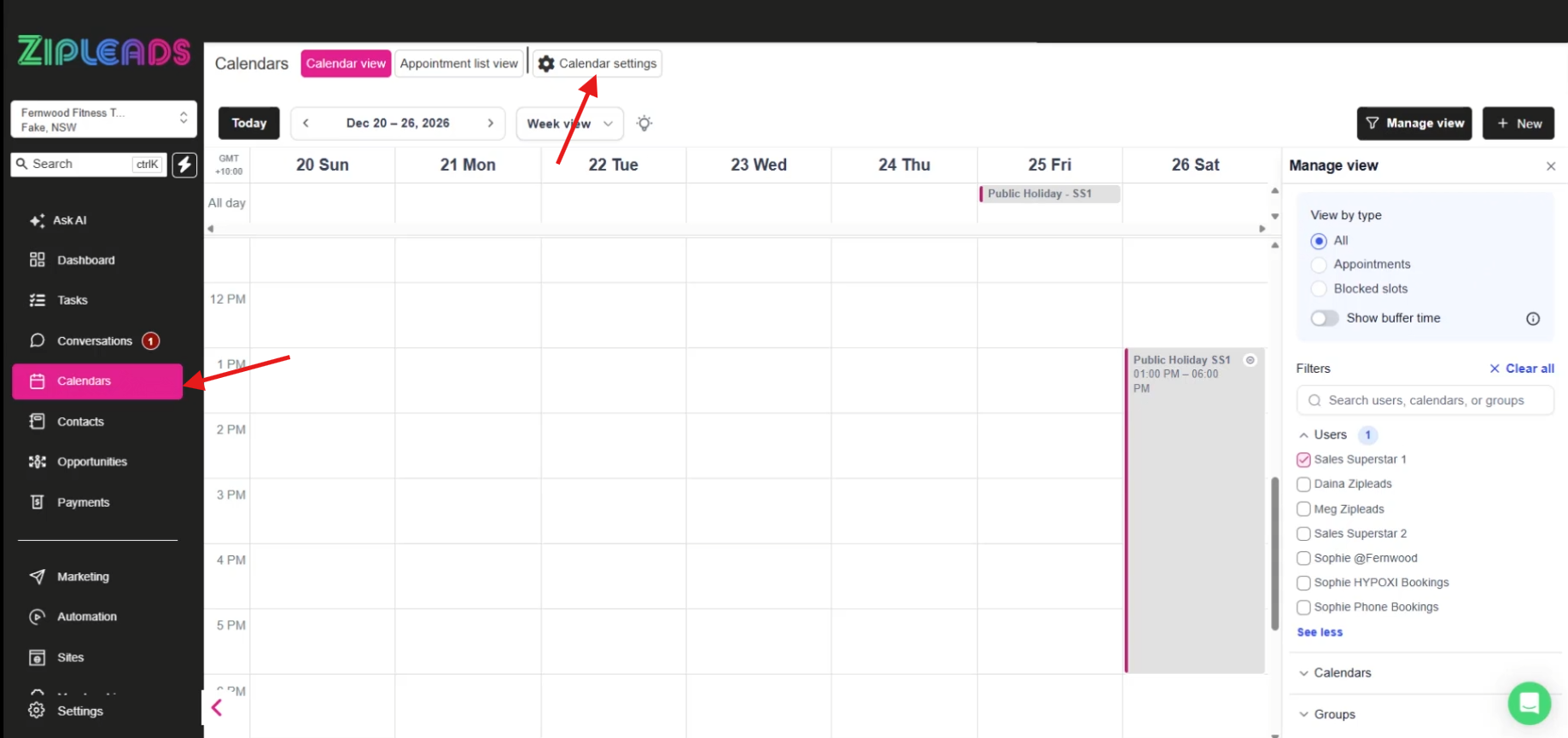 2. Select the pencil Icon on your Lead booking calendar (e.g Phone appointments or Tour appointments. Hint there may be a few calendars you need to do this for)
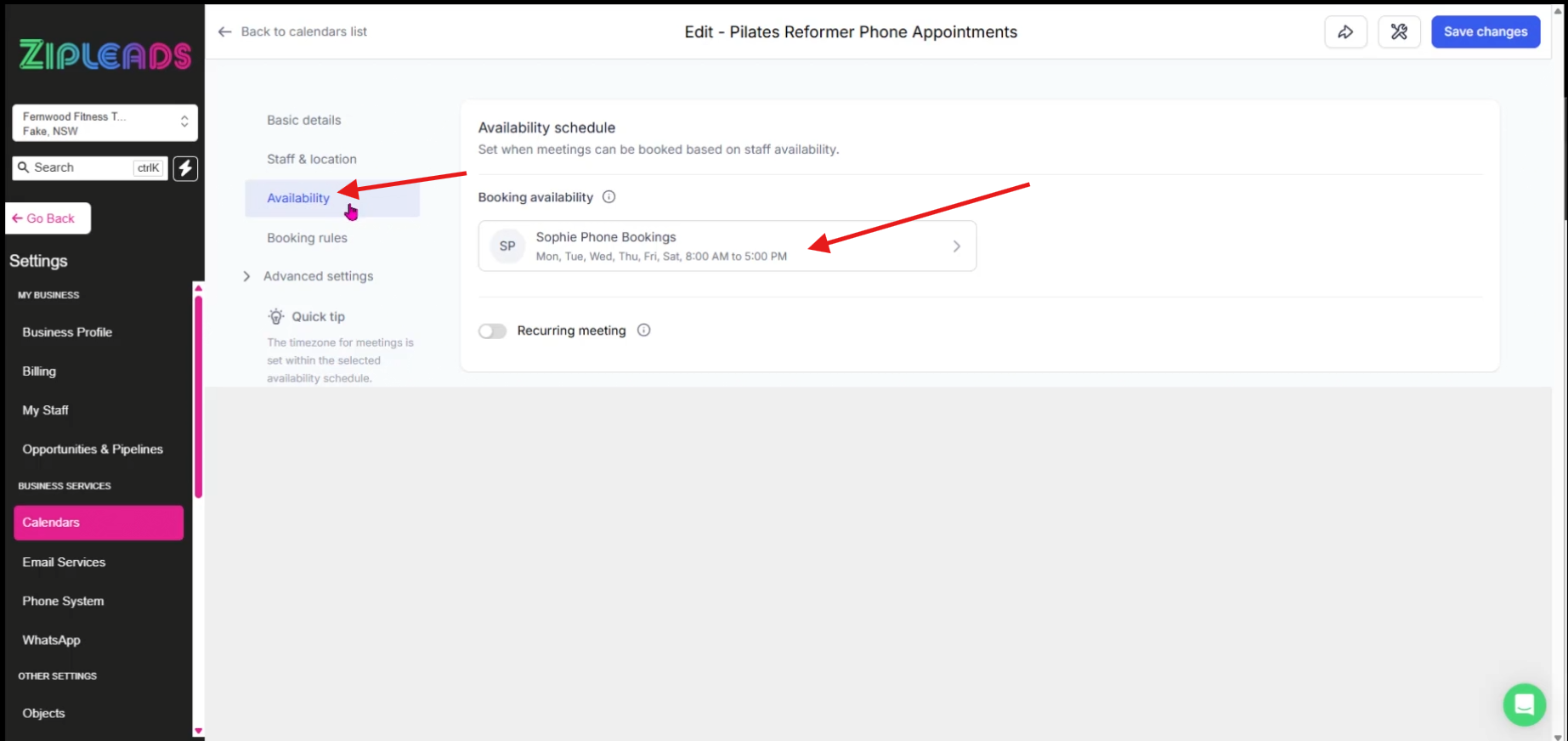
 3. Select Availability and then click on the user (or bulk edit if you see multiple users here) :
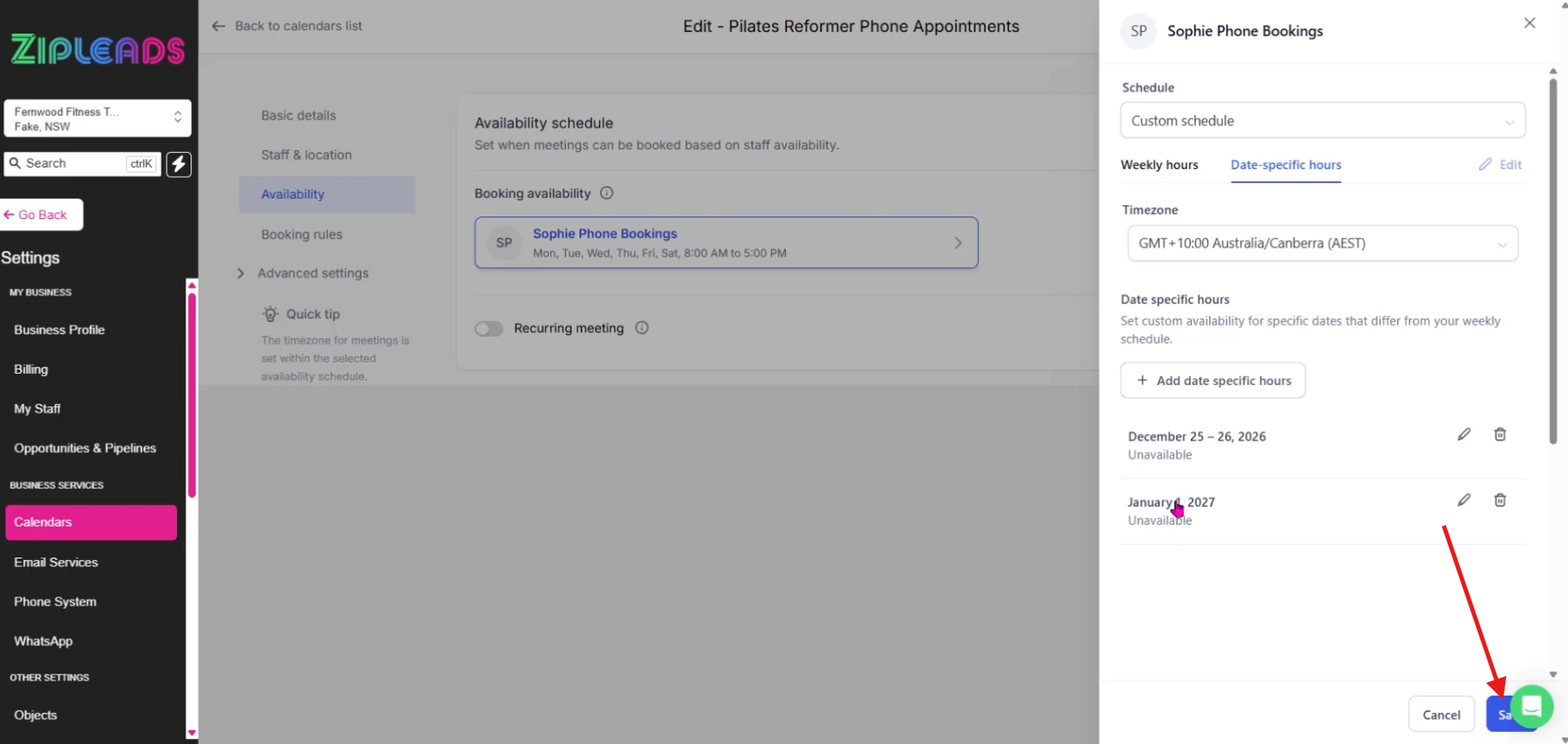
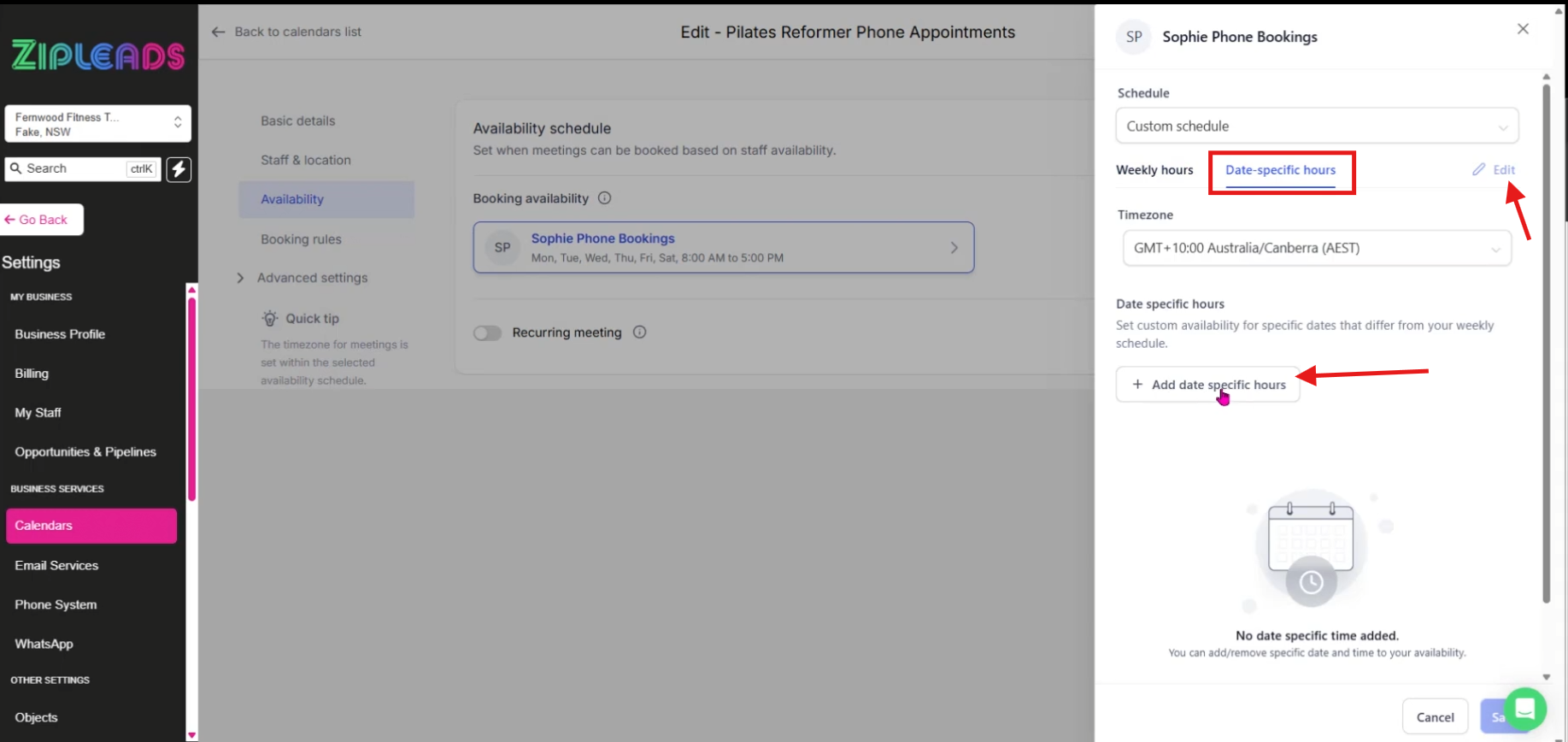
  4. Select Date Specific Hours > Edit > Add date Specific hours:
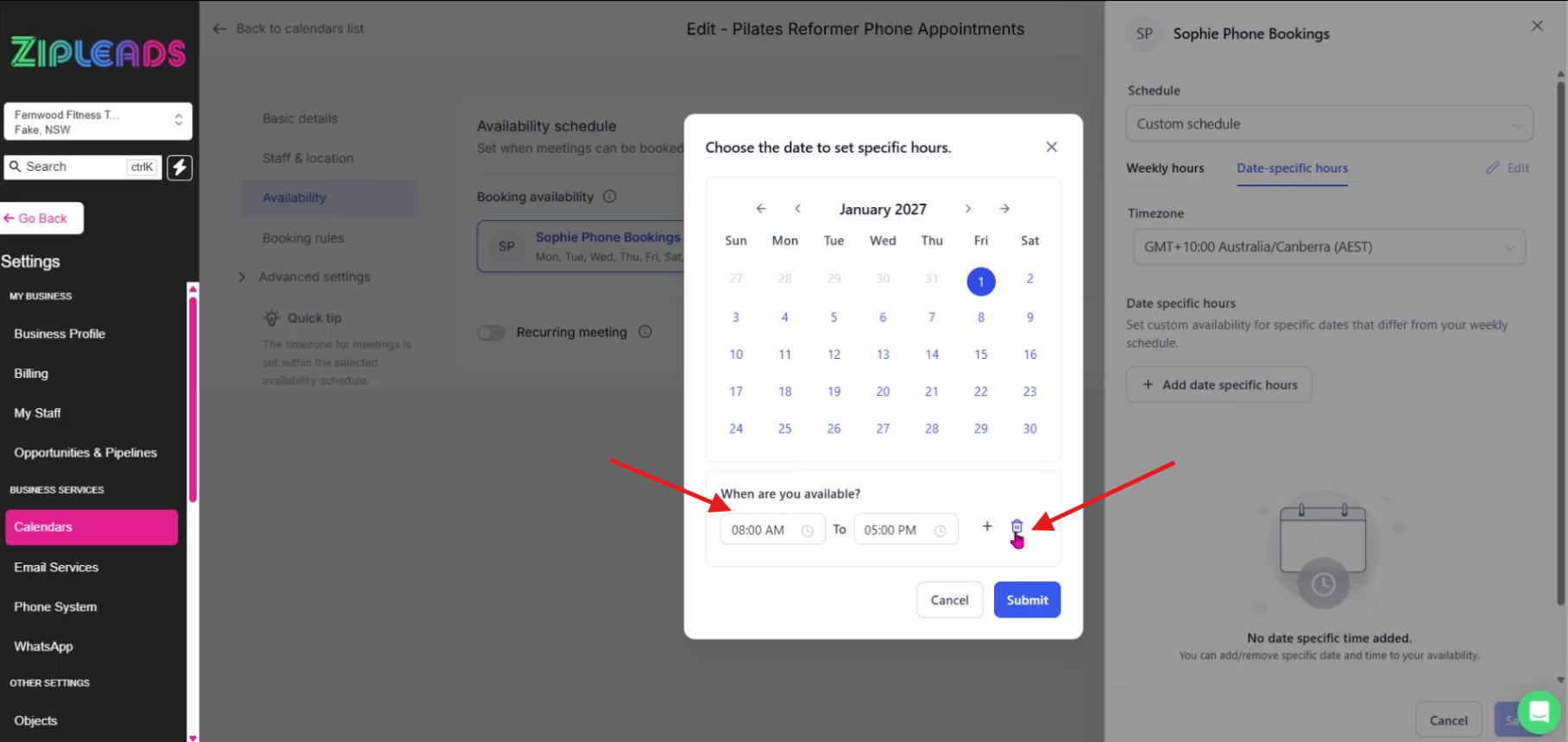
  5. Find your date or dates on the pop up calendar, then either select the bin Icon if the team is unavailable the whole day or if you put in certain hours here, this will adjust your operating hours just for that day (e.g if your hours are normally 9-5, but on this specific day you were only staffed between 9-1)
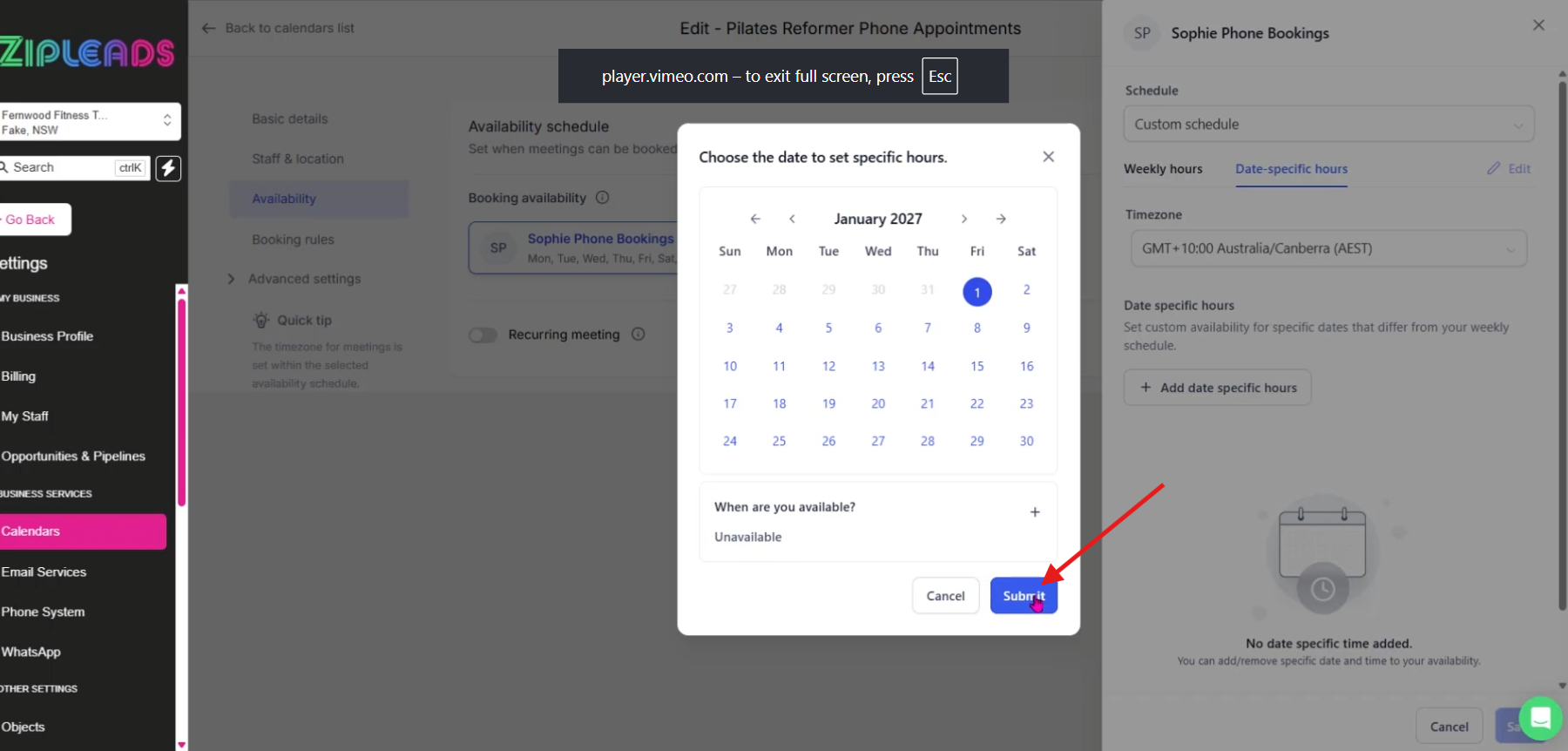
 6. Then select Submit
  7. Save the changes and then save the whole calendar: